


USA SWIMMING MEMBERSHIP RENEWAL for Returning Member

USA SWIMMING
Membership renewal for Returning Member
DO NOT CREATE A NEW MEMBERSHIP FOR YOUR CHILD. If you create a new membership for your child and your child was previously registered with USA Swimming, you will not see your child’s past membership information, including times.
STEP 1. Create a Parent Account

Once you click on the 'Create A Login' button where you will then be taken to the 'Create A Login' screen:

Here you will need to fill in your personal email address and click the 'Continue' button. Once you click the 'Continue' button, you will be sent a verification code via email. The email will look like the picture below. Please check your spam/junk folder if you do not see the email in your inbox. 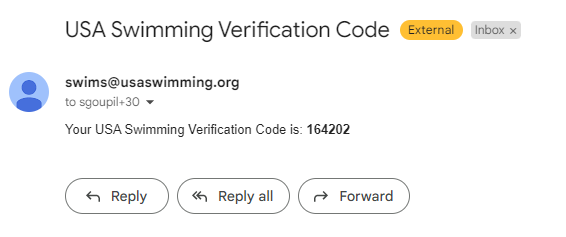
On the USA Swimming site you will be taken to the following 'Verification' screen: 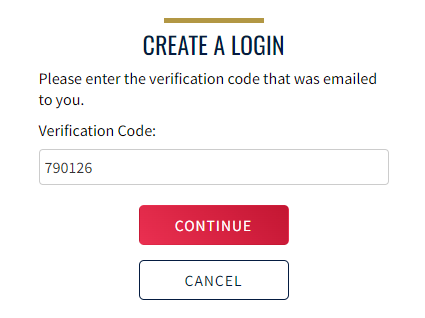
This is where you will enter the verification code that you received in your email. Once you click the 'Continue' button you will be taken to the next step of creating your new username and password, as well confirming your password: 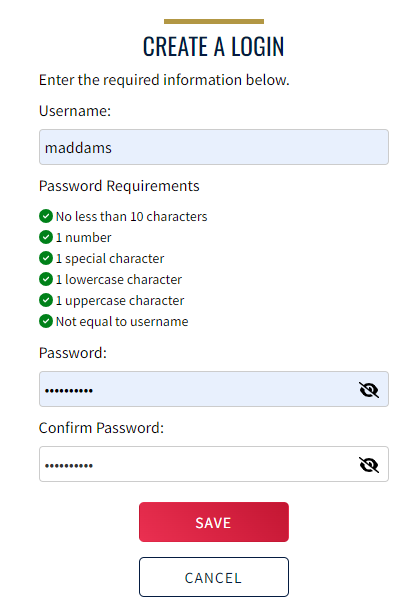
Once you click on the 'Save' button you will then be taken back to the 'Login' screen where you will enter your new username and password and click the 'Login' button:
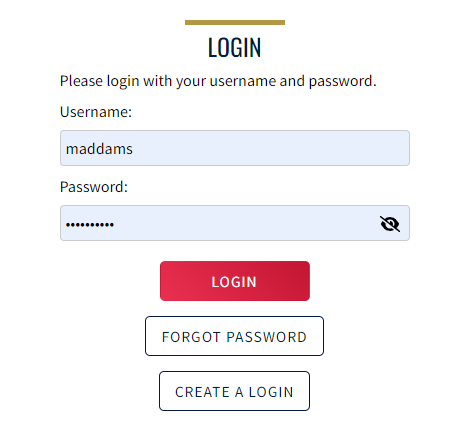
Once you click on the 'Login' button, you will then be take to the 'Finalize Login' screen: 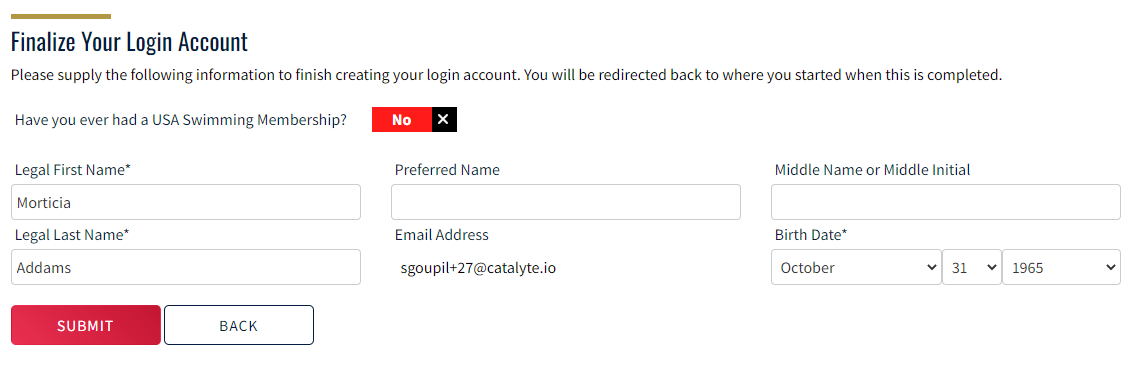
Here you will see the question 'Have you ever had a USA Swimming Membership?' and if you, personally, have never had an account, you will need to click that toggle button to 'No'. You will then fill in the required information(PARENT) and click the 'Submit' button. Please do not request your child's Member ID, you are not creating an account for your swimmer here. Once you click the 'Submit' button, you will then be taken to the 'Legal Acknowledgements' screen:
You will need to click 'Yes' on all of the toggle buttons in order to continue. Once you have clicked 'Yes' on all of the toggle buttons you will be able to click the 'Continue' button.
Once you've clicked the 'Continue' button, you will be taken to a page asking 'Who is the membership for?'. You will click the radio button next to 'The membership is for someone other than the logged-in user'.

You will then want to click the grey toggle button until it says 'Yes' and you see the image that says 'Renew Member'. You will then click on the 'Renew Member' image to proceed to the 'Existing Member Search' page.

Here you will type in your swimmer's 'First Name', 'Last Name', and 'Birth Date'. You will then click on the 'Search For Member' button.
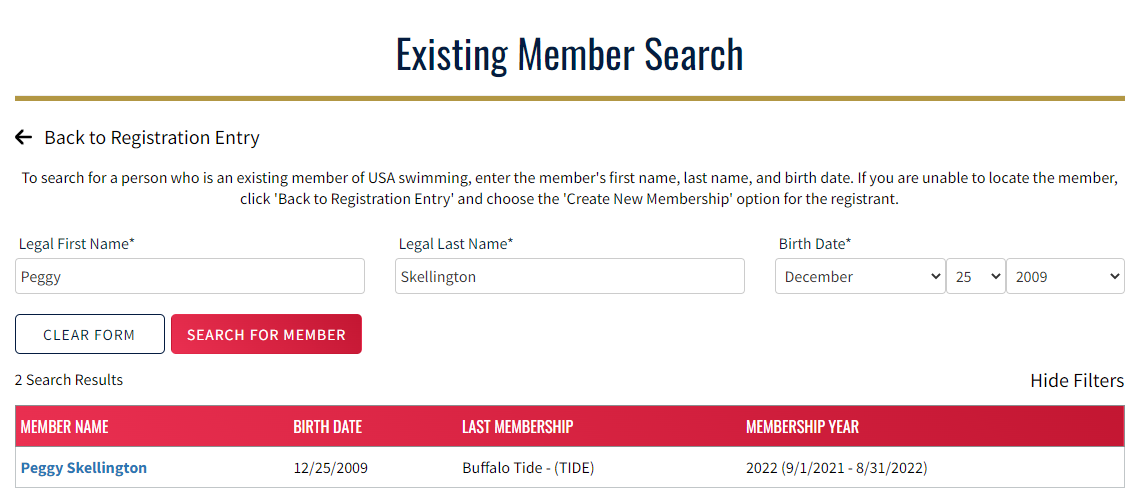
Once you have clicked the 'Search For Member' button, you should see your swimmer listed in a table, as shown above. You will click on the member's name in order to proceed in the registration renewal process.

The next page you will see is the 'About Member' form. Please fill in the required information and click the 'Continue' button to proceed in the registration process. Depending on the age of the member the next page you see will either be the 'Member Contact' form or the 'Emergency Contact' form. If the family member is 16 years of age or older, you will see the 'Member Contact' form. where you will need to complete the required information and click the 'Continue' button. You would then be taken to the 'Emergency Contact' form, where you will need to complete the required information and click the 'Continue' button. If the family member is 15 years of age or younger, you will see the 'Emergency Contact' form only and you will need to complete the required information and click the 'Continue' button.
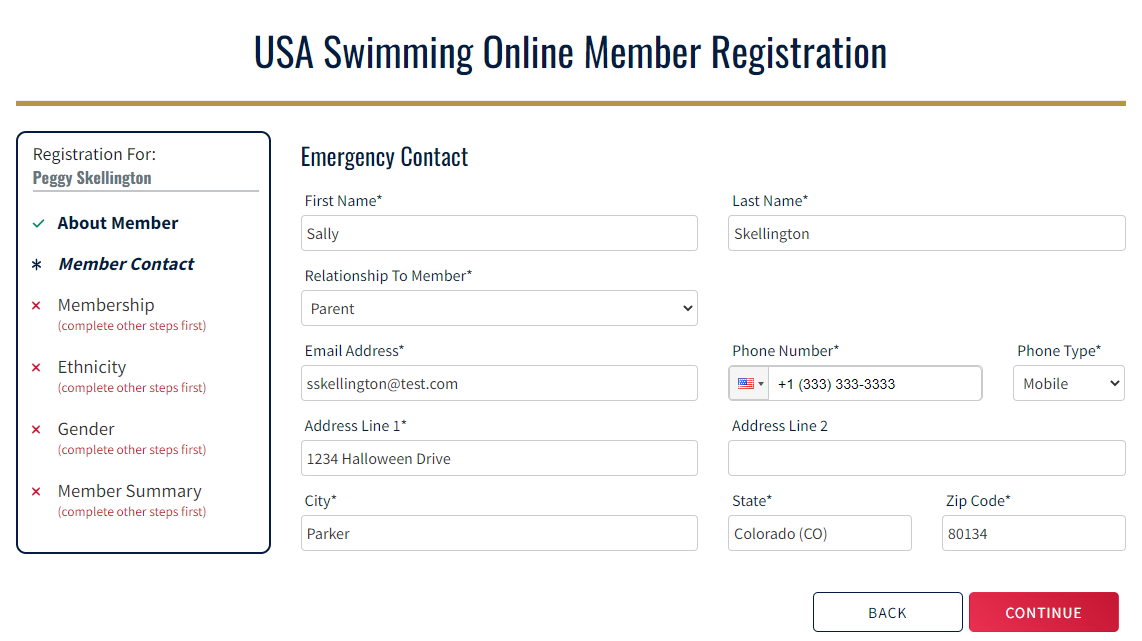
Once the 'Emergency Contact' form has been completed you will be taken to the 'Membership' selection page. This page will have different offerings based upon the age of the family member.
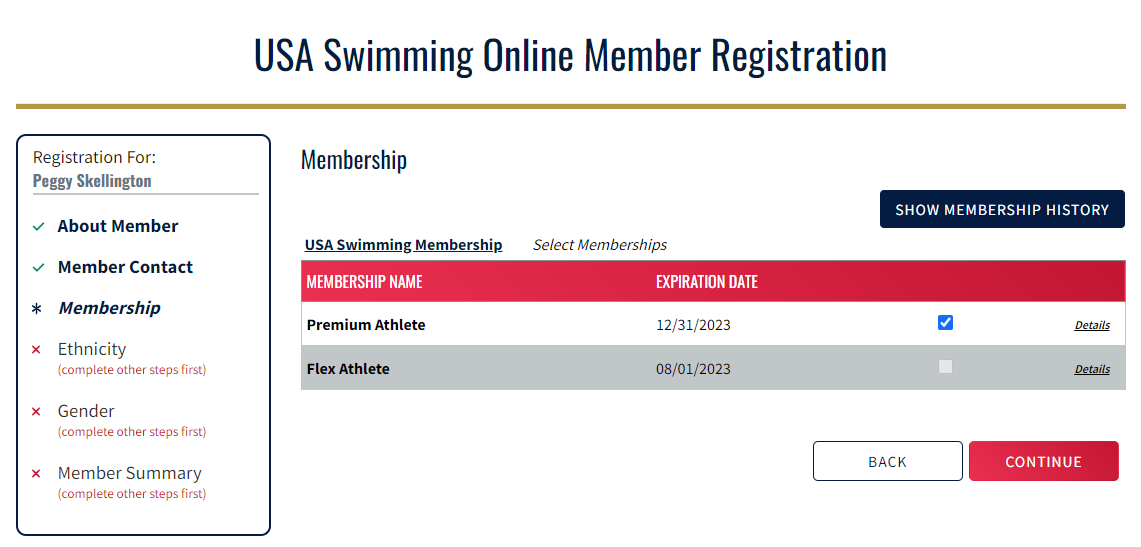
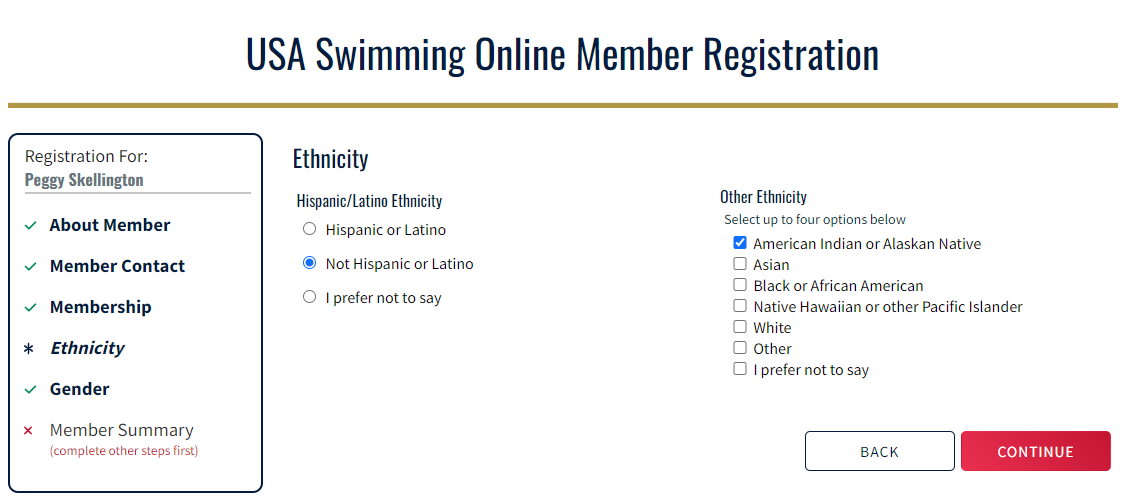
Once you have selected the correct memberships and clicked the 'Continue' button, you will be taken to the 'Ethnicity' selection page. Here you will select 'Hispanic or Latino', 'Not Hispanic or Latino', or 'I prefer not to say'. If you select 'Hispanic or Latino' or 'Not Hispanic or Latino', you will need to make an additional selection and then click the 'Continue' button.
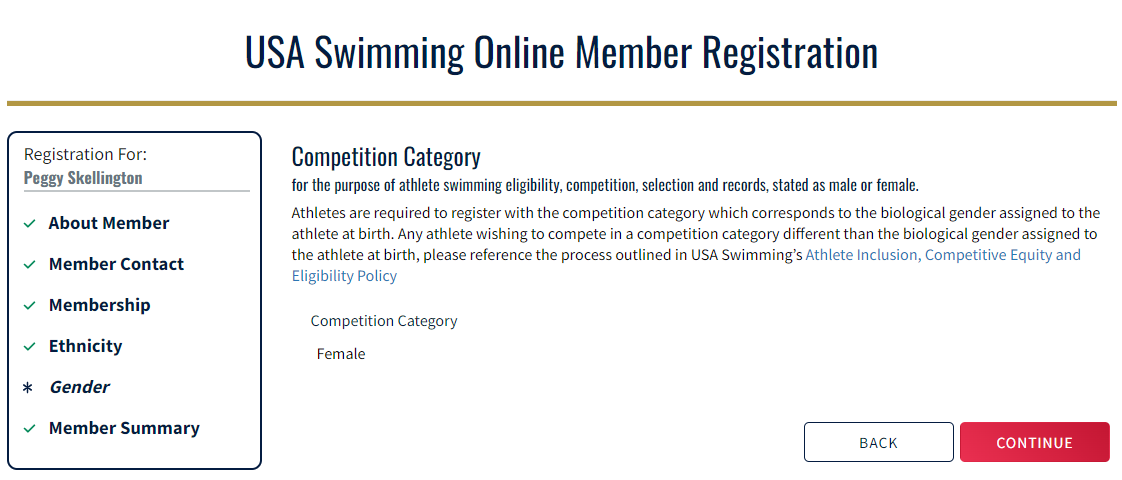
The next page you will see if you signed your family member up as an athlete is the 'Competition Category' selection page. Here you will select the correct 'Competition Category' and then click the 'Continue' button.
The next page you will see will be the USADA Disclaimer page. You will need to click all of the toggle buttons to 'Yes' and then click the 'Continue' button.

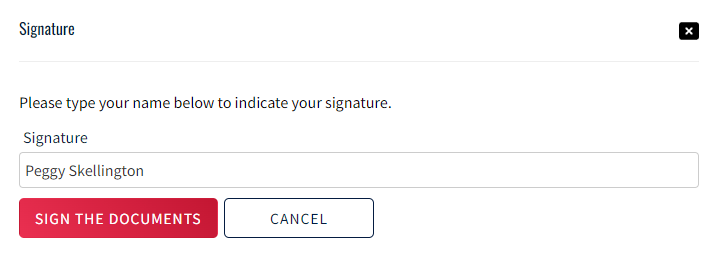
You will then see a pop-up box for you to enter you name as your 'Signature'. You will then click the 'Sign The Documents' button to continue to the 'Member Summary' page.
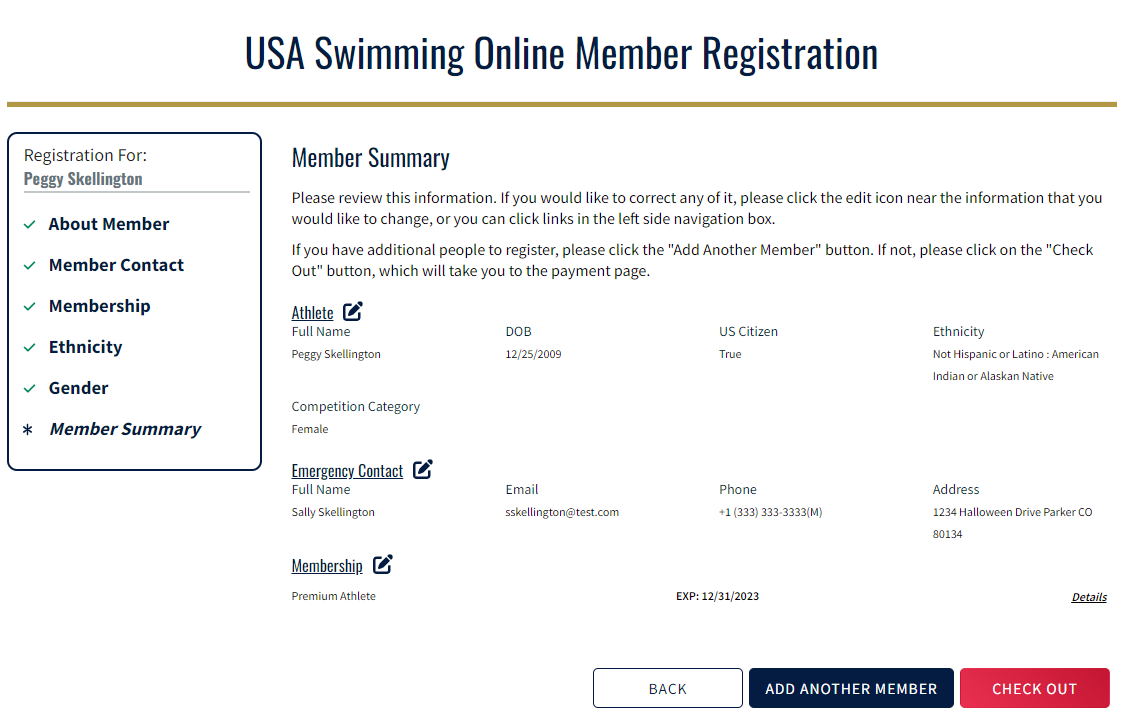
Once you have clicked the 'Sign The Documents' button, you will be taken to the 'Member Summary' page. This displays all of the information that was provided throughout the registration process. To proceed you will need to click the 'Continue' button.
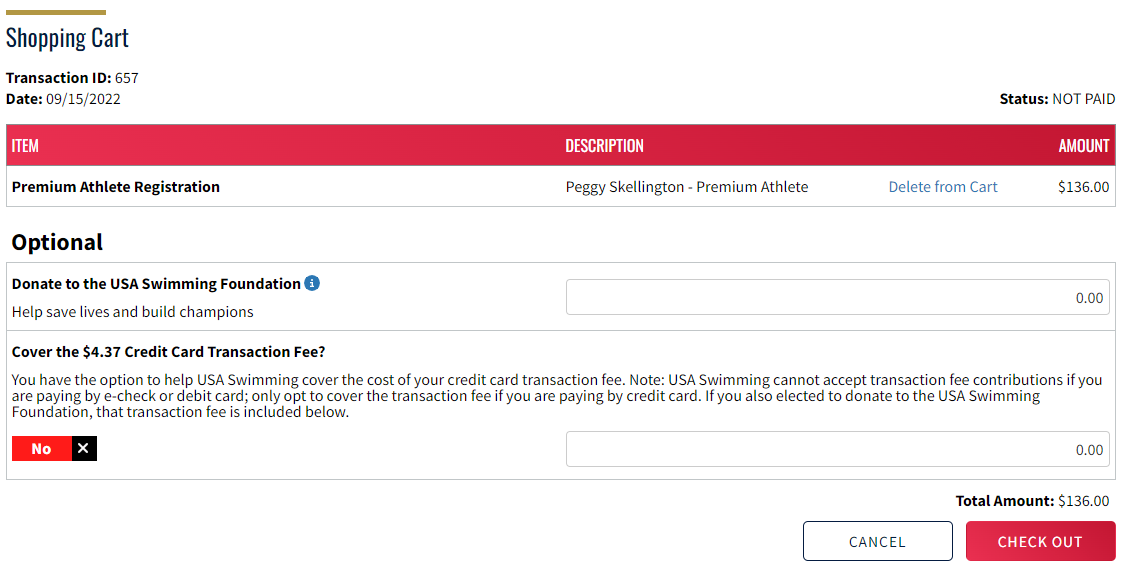
Once in the 'Shopping Cart' page, you will be able to view the fee for the membership that you have signed your family member up for, as well as make an optional donation or cover the 'Credit Card Transaction Fee' by clicking the toggle button to 'Yes'. You will then click the 'Check Out' button to proceed to the 'Check Out' page.
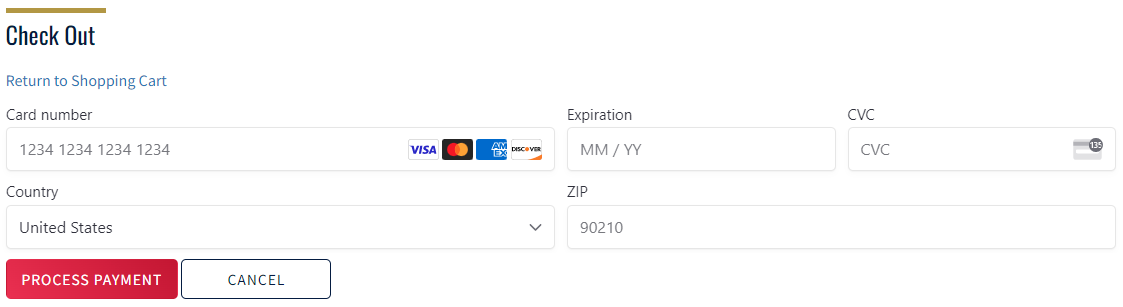
On the 'Check Out' page, you will be able to put in your credit card information and then click on the 'Process Payment' button to process your payment.
Once you have clicked the 'Process Payment' button, you will see the following message upon successful payment:

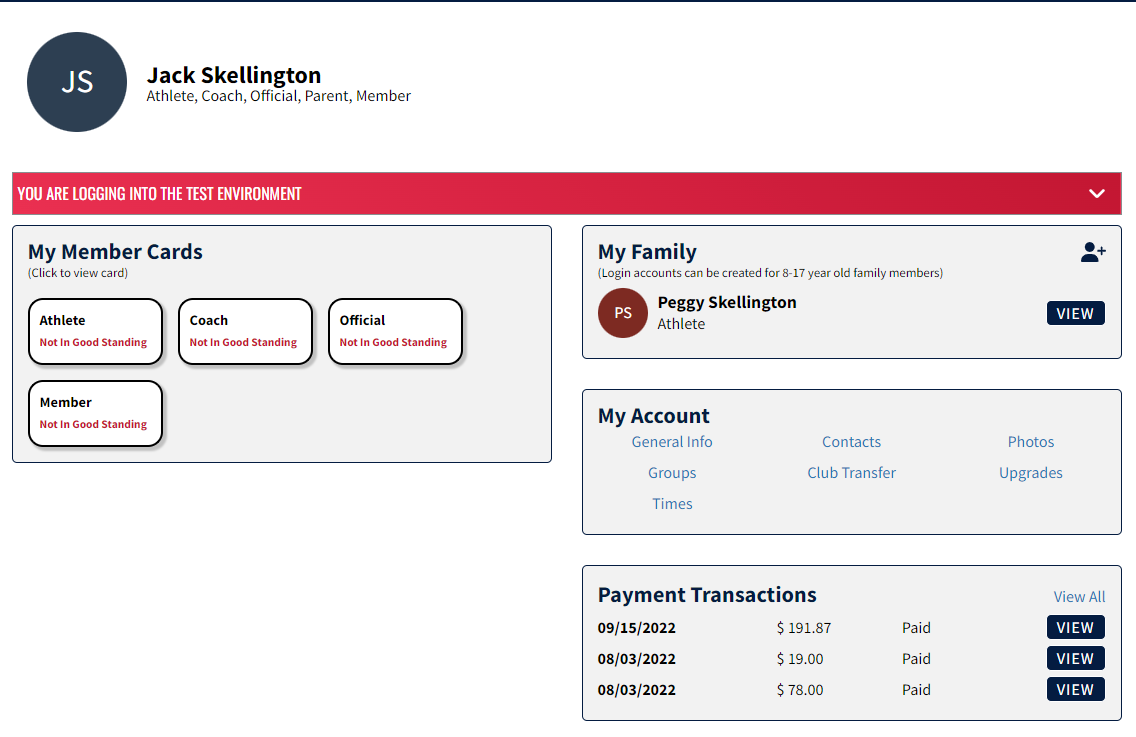
You will then need to click the 'Return' button to be taken to your 'Member Dashboard'. Here you will be able to see your family member has been added to your 'My Family' section on your 'Member Dashboard'.
If your registration is completed, you will receive a receipt and member registration purchase completion email.
* The USA Swimming Membership fee is included in the club membership fee you paid at the time of registration. After the USA payment is completed by the parents on the USA Swimming system, the fee will be refunded to the MAC account. You can use the credit for a swim meet participation fee or the next payment. If you want an immediate refund, please contact coach Joung.
Follow MOONS AQUATICS CLUB



EMAIL [email protected]
PHONE 703-343-0905
ADDRESS 10660 Page Ave #3711, Fairfax VA 22038
www.moonsaquaticsclub.com
