Swim Meet Registration 101
CSC Short & Long Course Meets
Step 1 – Meet Posting
Allegheny Mountain Swimming (AMS) posts the season’s swim meets at the following link:
While other information is available on this site, it’s best to use it as a reference only.
Once a meet we plan to attend is posted, I or another coach will download the necessary files from the link above. These files include the meet invitation and meet events, which are then used to set up the meet in our Team Unify site for sign-ups.
(Note: The process for setting up a meet on our website is not covered here.)
After the meet is posted, you will receive an email notification that it’s available for sign-up. At that point, you can proceed to the website to begin the signup process.
Step 2 – Navigating Meet Sign-Up
When a meet is posted, a new event will appear under the Team Events tab on the CSC website. Here’s how to access it:
From a Computer
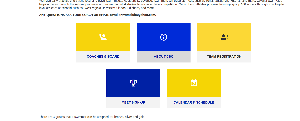
1. Scroll down to the Meet Sign-Up button (shown below).
2. Hover over the button and left-click to proceed.
Step 3 – Registering Your Swimmer
Once you’ve accessed the Team Events tab:
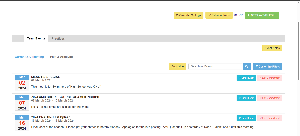
Follow these steps to enter your swimmer:
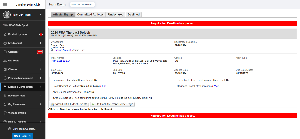
1. Click on the pink “Edit Commitment” box. The screen below will appear.
• If this is a new meet, the red bars indicating that the registration deadline has passed will not be visible.
• Notice the Registration Deadline at the top center of the screen. Entries must be submitted by the deadline, which is 10:00 PM.
2. Click the Undeclared tab. This will bring up the screen below, where you can select your swimmer.
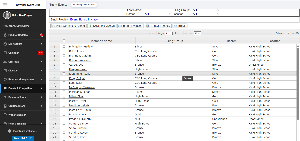
3. Select your swimmer by clicking on their name.
• From the SELECT menu, choose “Yes, please sign [swimmer’s name] up for this event.” Your swimmer’s name will appear in the bracket.
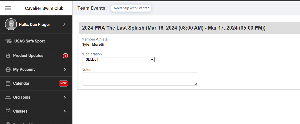
4. After selecting your swimmer, a new screen will display all available events for the meet.
• Scroll through the list of events to make your selections by clicking the boxes for the swims you want your swimmer to participate in.
5. Once you’ve chosen all events, go to the bottom right of the screen and click Save Changes.
Congratulations—your swimmer is now signed up!
Step 4 – Verifying Your Sign-Up
To ensure your sign-up is complete:
1. Click on the “Committed Athletes” tab.
2. Scroll down to find your swimmer’s name on the left side of the page. It will appear as follows:
[Swimmer’s Name] – Events Selected
Important information regarding entries for meets.
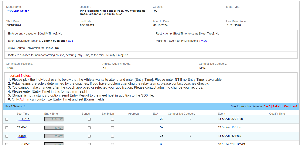
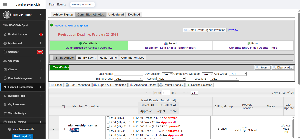
When you enter a meet, if the events listed show up in black- whether there is a time listed for the event or an NT (no time)- you are okay to select that event as one of your entries. Below is an example:
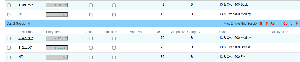
Notice that in the example above, at the far right of the screen, there will be no Qualify Time listed for the events. That means that entries will be accepted even if they are practice time entries. This is usually the case for open meets. For meets that have Qualify Times, the display will be different. See below:
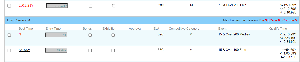
As you can see, there are Qualify Times listed for each event on the right. Looking back to the left, notice that there are two events that are listed with red Best Time descriptions. One is an NT and the other is a time value listed in red. These two events show times that are not within the Qualify Time designation for the event. NT would be obvious since there is no time, but the time for the 200 Free at the top is slower than the yard qualifying time listed on the right (<1:59.69Y).
Also notice that the time for the 100 Free at the bottom is shown in black. Looking on the far right, you can see that the Qualify Time is slower than the Best Time value on the left. So, the swimmer is eligible to enter that swim. checking the box for that event is appropriate.
Any questions ask your coaches or our board members for assistance!
