
Team Unify 101
Team Unify is the web platform used by swim teams, including the Seminole Sharks . Every family on the team will have an account on this website (you created an account when you signed up for swim and dive team!). This is a tutorial on how to use Team Unify so you can easily sign up for swim meets and volunteer shifts!
Signing Up for Meets:
Each week before a meet, you will be asked to go into Team Unify and “declare” if your child will be attending the meet. Please note, there will be deadlines that you can declare (usually the Wednesday before the meet for a Saturday meet), so please pay attention to coach’s emails on when you must have this done by!
Follow the instructions below to sign up:
Log in to your Team Unify Account (you will find the log in on the Sharks website)

Once you have logged in, you will see a menu on the left. Click on the Events & Competition tab.

In the pop up menu, click on Team Events
You will be taken to a page that will have all the meets and events happening during the summer. Find the meet you want and click "Attend/Decline"
You will be brought to a new page. Find your child's name and click on it. A new page will appear with a “Declaration” drop down menu.
Here you have two options:
- If your child will not be attending the meet, please select “No thanks, (child) will NOT attend this event". Then SAVE CHANGES! If you do not save changes then it will not register that your child will not be attending.
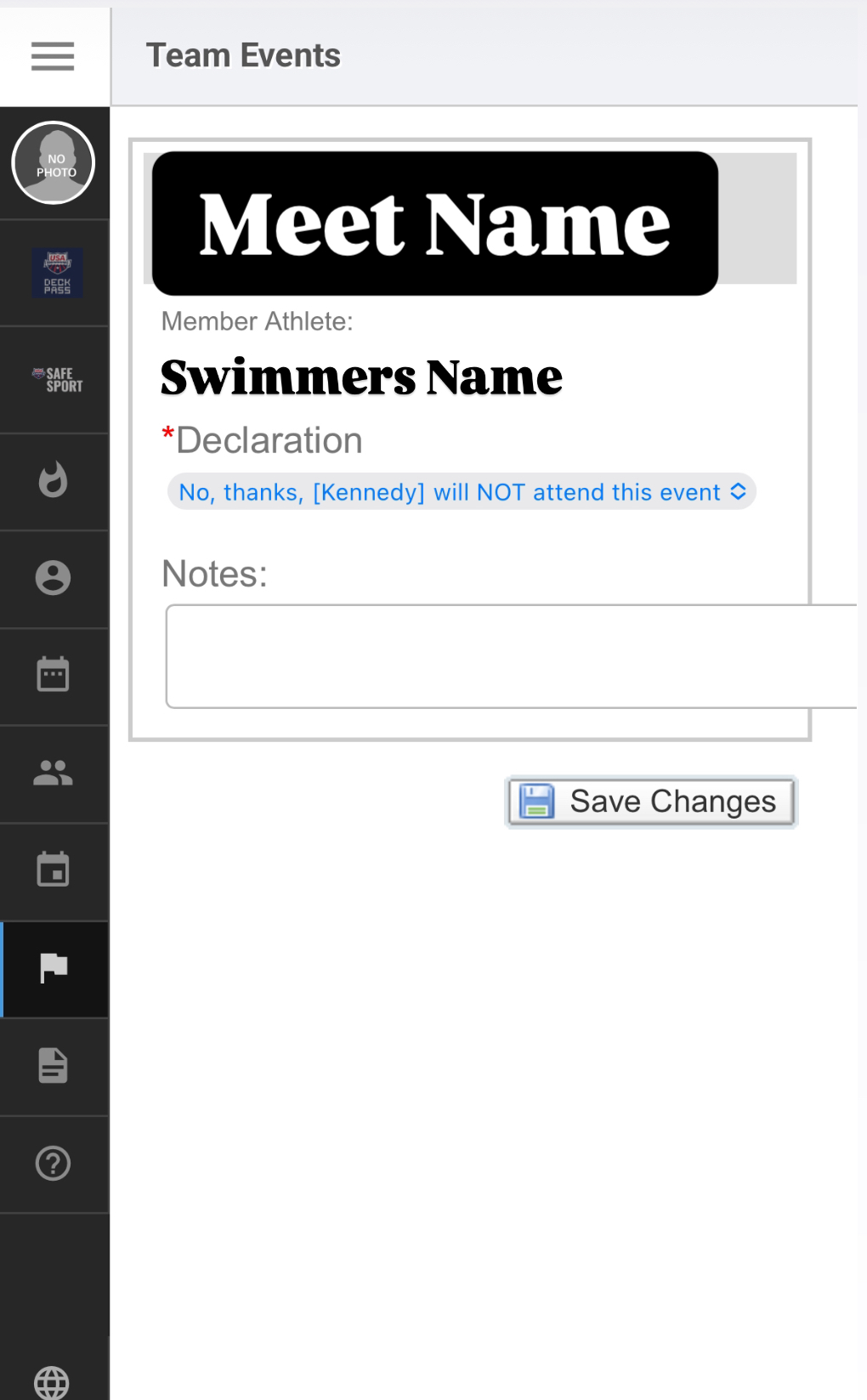
If your child plans to attend the meet, then select "Yes, please sign [swimmer] up for this Event”.
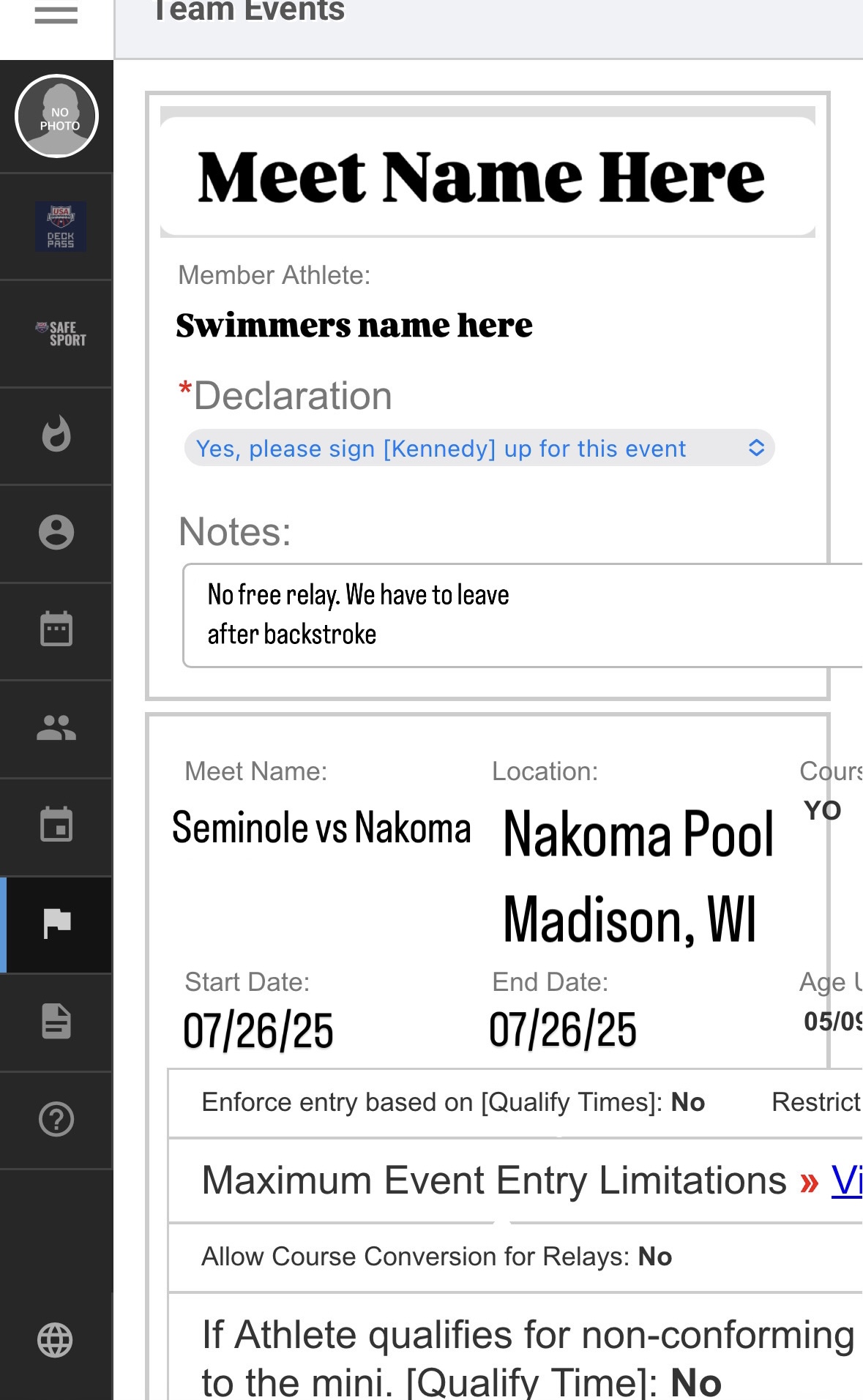
The page will then expand, and you will be able to see what events your child is able to swim. Please click on the box to select what events your child would like to swim. For the All City League, a child is allowed to swim up to 2 individual events per meet. Then SAVE CHANGES! If you do not save changes then it will not register that your child will not be attending.

Once you save changes, you will be brought back to the event page and you will be able to see a green check next to your swimmers name with “Committed” next to it. You will also be able to see what events you selected for your swimmer to swim.

You will be able to go in and change your declaration or select different events up until the deadline. You will do this by going back to the Team Events page and going to the meet, and sselecting "Edit Commitment" . As mentioned, this will only be allowed until the sign up deadline, after that you will not be able to make any changes. Please email your coach if you have any changes and they will try their best to help.
Relays:
Coaches select relay teams (please see our Swim Q &A for more info). There are two relays per meet. The Medley Relay consists of a team of 4 swimmers that each swim a different stroke. This will be the first event of each meet. There is also a Freestyle Relay. This is a team of 4 people who swim all freestyle. These relays are later on in the meet.
Unfortunatly, There isn't a button in Team Unify that allows a parent to select "yes sign my child up for a relay" or "no, do not sign my child up", so we ask that parents use the "notes" box on the declaration page.
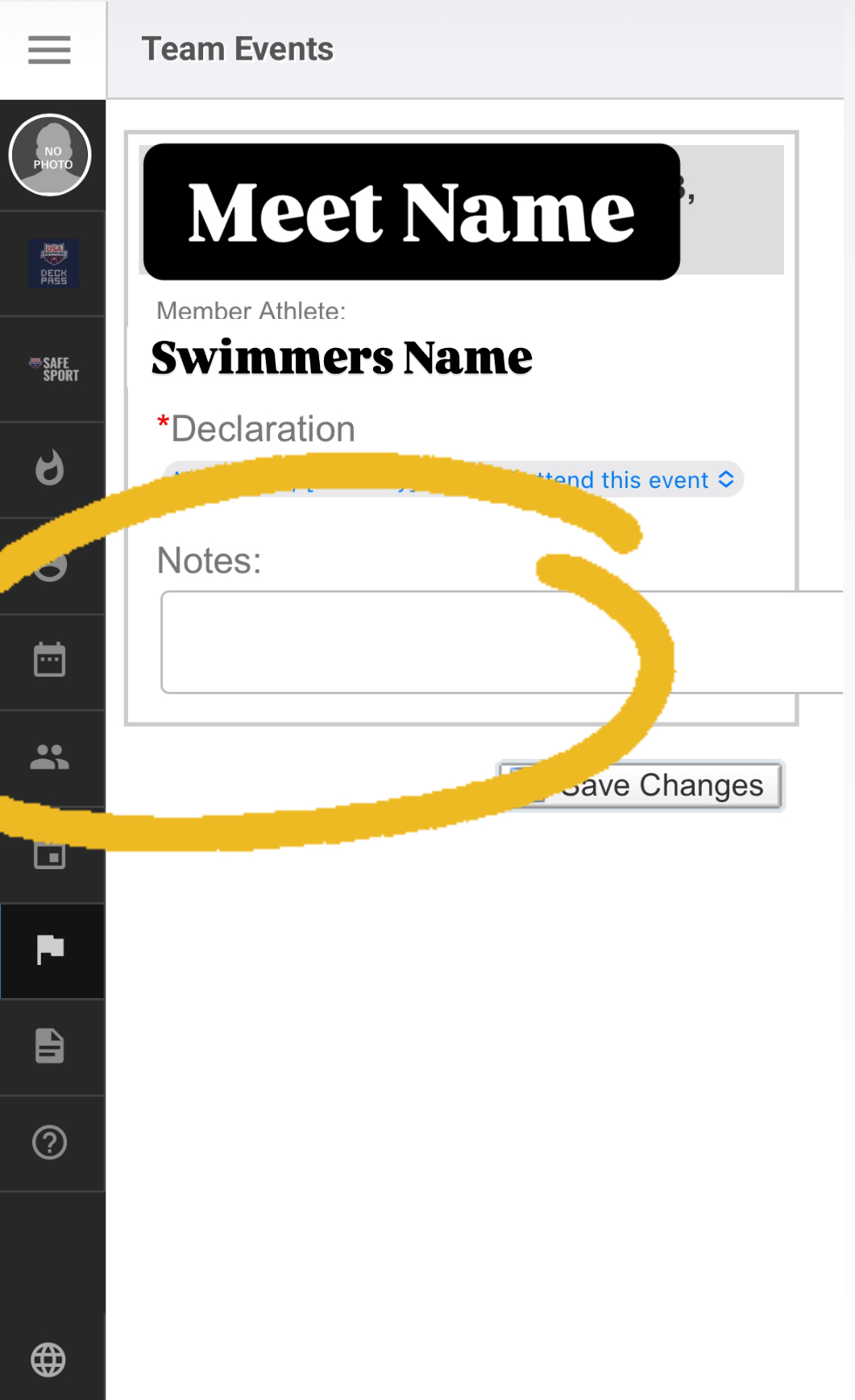
IF YOU LEAVE THE NOTES BOX BLANK, COACHES WILL ASSUME YOUR CHILD WANTS TO SWIM A RELAY!
If your child DOES NOT Want to/is unable to swim in a relay, then you have to make note of that in this box! If you leave the box empty or don’t add in anything about relays, coaches WILL sign them up! Don’t forget that you have to then click SAVE CHANGES!
- Some people are only able to make one of the relays (e.g. they have to leave early from the meet so they can only swim the medley relay and is unable to swim the freestyle relay). You must indicate which relay your child will not be able to attend, otherwise they will be signed up for both relays.

If you have more than one swimmer, you will have to complete this same process of declaring each swimmer and selecting events.
Volunteering:
Seminole also uses Team Unify to sign up for volunteer shifts. To find the volunteer shifts, you will sign into team unify just like you do to sign up more meets. Login and then click on the “Events & Competition” tab to the left. Select “Team Events”.

If you are looking for the season volunteer sign up, find “Volunteer Sign Up 2025” and select the green button “Job Sign Up” This will bring you to a page with all the volunteer options available throughout the season!

You will also be able to find other event sign ups, such as the kick off party and Badger Prarie Needs Network shift sign up.
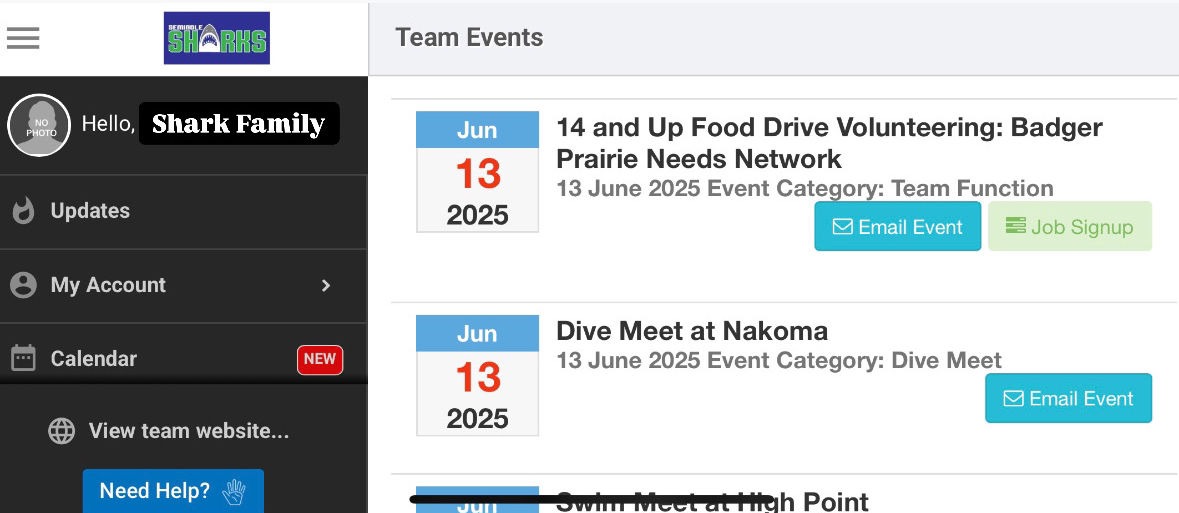
Remember, after you select your volunteer shift, SAVE CHANGES!
