OnDeck App- This section looks at the app that is free to the club with the Team Unify software platform. The app can be used by parents or swimmer to keep track of personal records or to compare times to the time standards for ages groups.

This app is free to our Team. Please go into the App store, or Google play store and download the On Deck parent app. This app will sync up with the website and keep you updated on news, meets/events, and swimmer times.
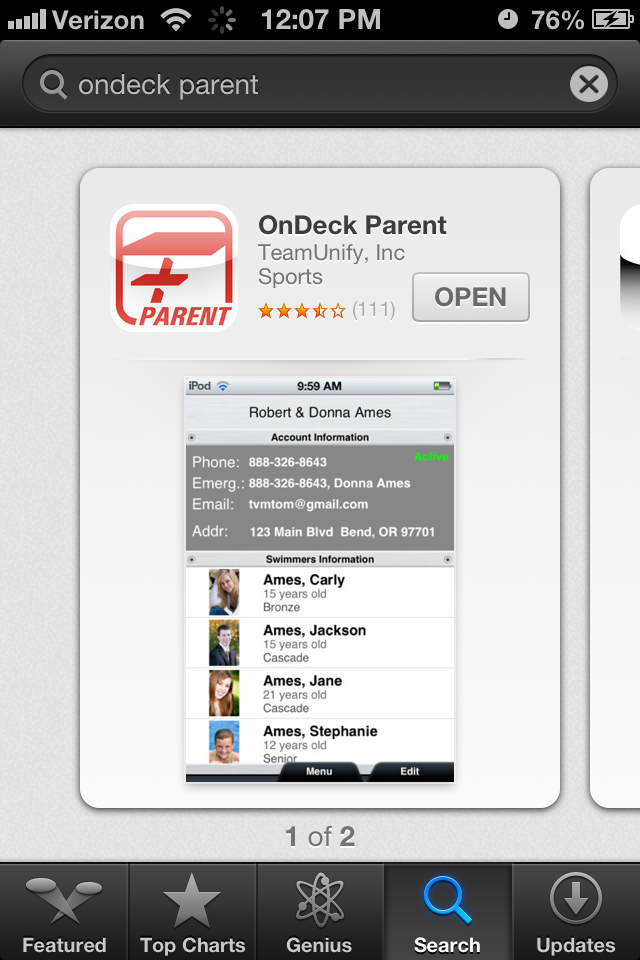
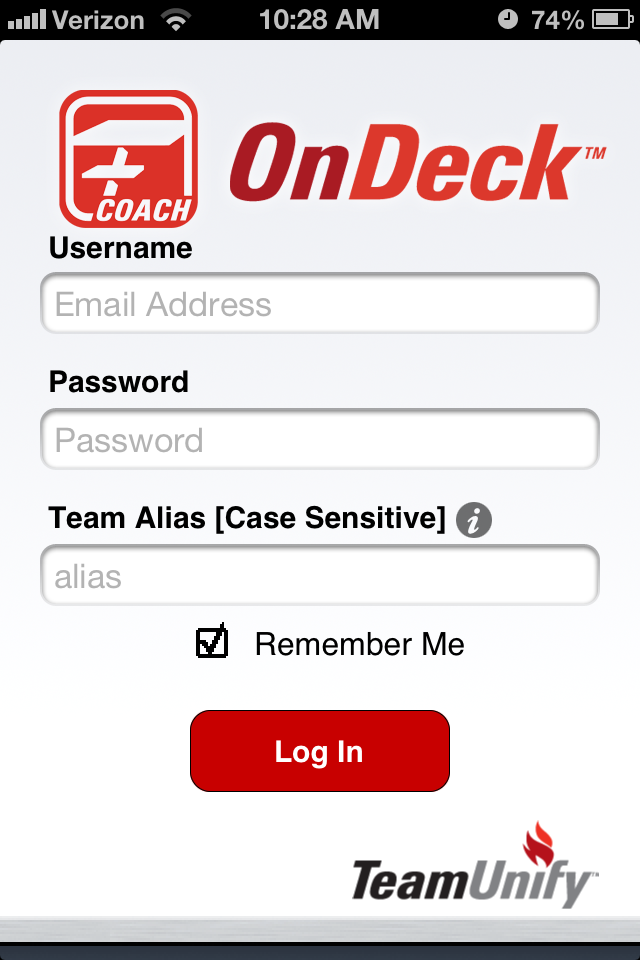
Once you have downloaded the On Deck app. Open the app and log-in using the username (email log-in) and password that you use to log-in to the website. The team alias is mnwsc.
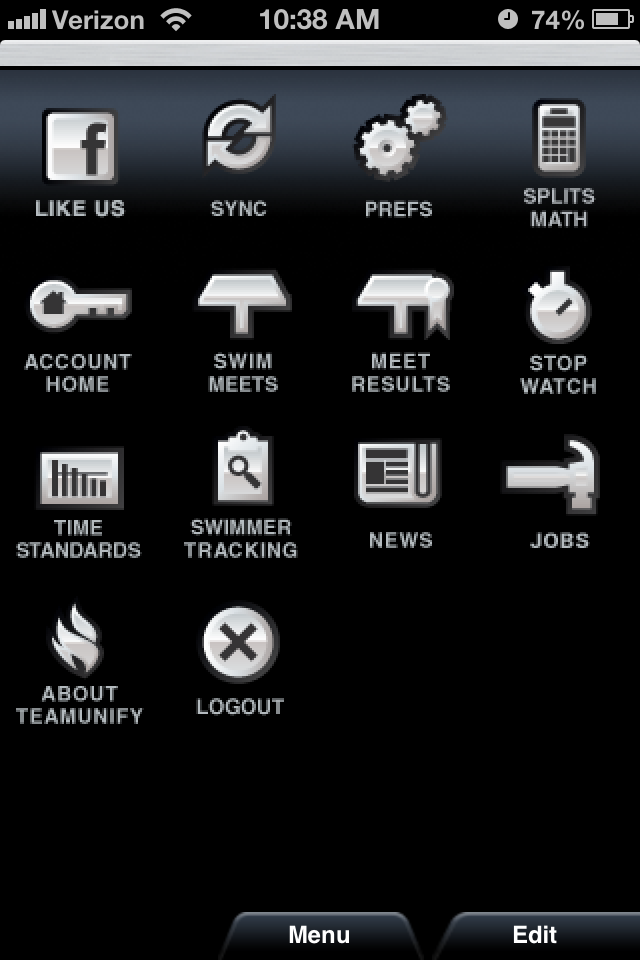
Now that you are in the app, you will see a menu button on the bottom, click on it. You will then see the icons for splits math, sync, time standards, account home, swim meets, meet results, stop watch, news, prefs, about team unify and attendance tracking.
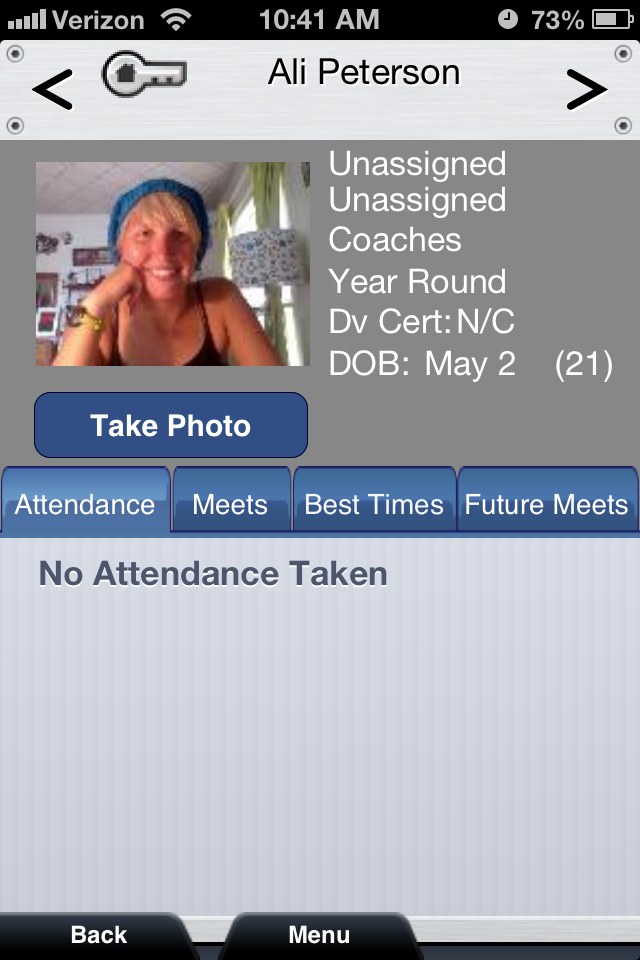
You can click on any one of these icons but for now lets go into the account home. You will see your name on the very tops of the screen. Below that is your account information, emergency contact information, email address, and address associated with your account. Underneath all that is the swimmer information. If you have multiple swimmers you will see both of their names. Click on a swimmer to view their profile. Next to the photo space, you will see the words unassigned, unassigned or unknown. Those are groups and billing groups and will be set up shortly. You can upload a photo for each swimmer if you wish. Under the photo will be tabs that say, attendance, meets, best times and future meets. Click on the meets tab. All the meets your swimmer has participated in will show up, you can click on those meets and further look at their times. The best times tab will have both their short course and long course times. Future meets will show any meets that your swimmer is signed up for. As of right now we will not be taking attendance so that tab isn't really something that you will need use.
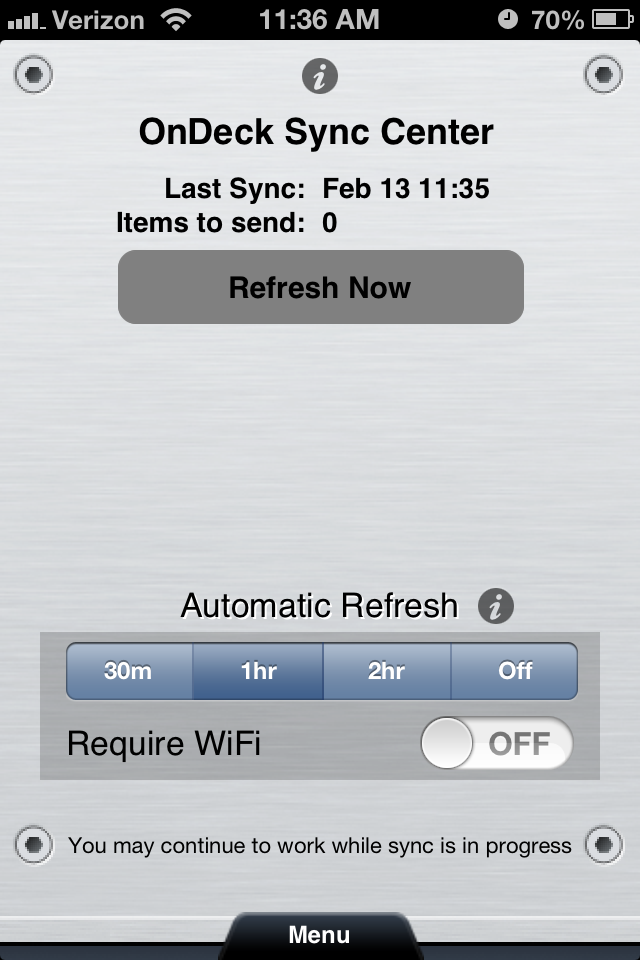
Next click on the sync icon. This icon will refresh the app from the website. You can set automatic refresh or click on the refresh now button. Also make sure your require WiFi button is set to your personal preferences. I have mine set as off, that way I can refresh my app anywhere, even without WiFi.
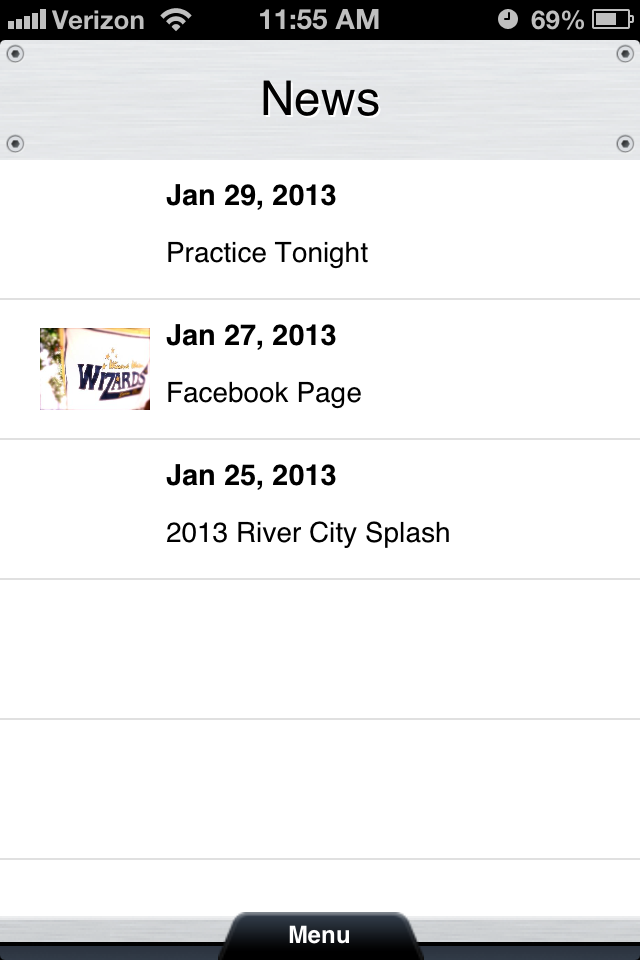
Another section that will be important to check is the news section. Coach Chris or myself will be updating the news section about practice information or updates about meets. Check the news section often for time sensitive information about practice or the club.

Getting started is easy!
1. Start by going to USA Swimming.
2. Create an account on USA Swimming If you already have an account with USA Swimming log-in to your account. When you link your USA Swimming membership to your Deck Pass account, all your times from USA Swimming-sanctioned meets will automatically be updated on Deck Pass. If you’re not a member of USA Swimming, don’t worry. You can still use Deck Pass. Your times will not be updated automatically, but you can keep track of your times in the Log Book and set goals with our Goal Setter.
3. You are all set to use your Deck Pass App Now. Explore and see what it has to offer.
With Deck Pass for USA Swimming members, you can:
- Connect with your teammates and coaches who are also using Deck Pass. If you’re over 13, you can also connect with your Facebook friends so you can share your achievements in the pool with friends and family.
- Earn digital patches for all your accomplishments in the pool. All your times from USA Swimming meets are automatically collected and updated in the Deck Pass database, so you don’t need to do a thing. Just swim and watch the patches roll in.
- Track your best times in every event. Again, all your times are automatically updated in the Deck Pass database.
- Set goals for the sea