Computer: How to Commit/Sign Up for a Meet/Event
Click here for more website information: HERE
- Sign in to your team's website.
- Click Events & Competition > Team Events in the side menu.
- Click your desired event’s Attend/Decline or Edit Commitment button.
- Click the name of the athlete whom you want to attend.
- Click the Declaration dropdown and click Yes, please sign [Name] up for this event (or No, thanks, [Name] will NOT attend this event, enter any Notes, and then click Save Changes).
- If applicable, enter any Notes you want the coach to see.
- If a team admin has allowed you to select events, check the boxes of the events you want your athlete to enter.
-
- Red times indicate your athlete is not qualified to enter those events.
- Events you choose are subject to coach approval.
- Otherwise, select which days and sessions your athlete will attend, and a coach will then pick which events your athlete will enter.
-
- You may click a day/session button to see scheduled events.
- When finished, click Save Changes.
- Repeat for all other athletes you may have.
Mobile: How to Sign Up for a Meet
Please click here for more SportsEngine motion information: HERE
- Open the mobile app and sign in.
- In the upper left corner, open the navigation menu by tapping the hamburger icon.
- Tap Events & Jobs.
- Tap Events & Meet Entries.
- Locate the desired event and tap Declare.
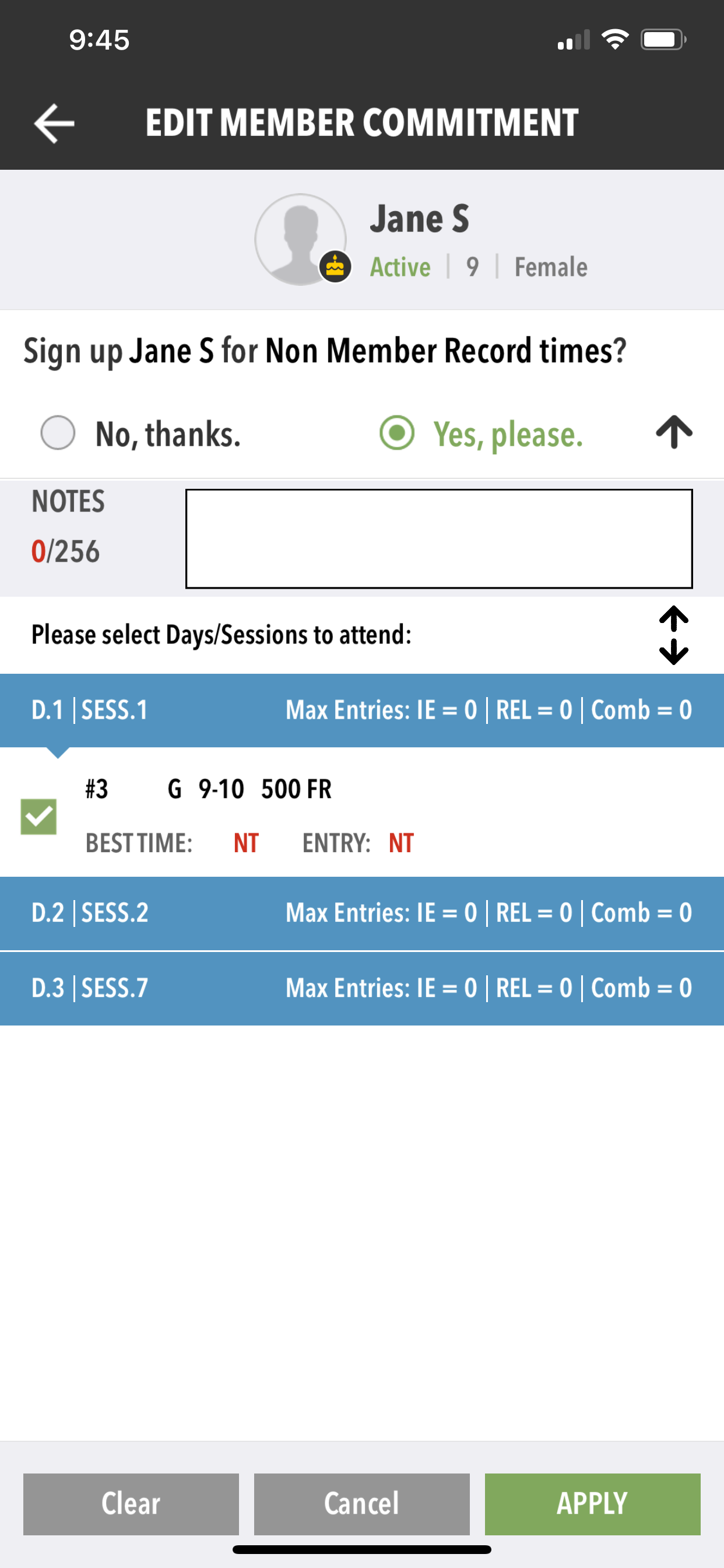
- Tap the member's name to sign up.
- Check Yes, Please.
- If desired, enter any notes.
- Tap the desired Days/Sessions and check each event's box(es) to sign up.
- When finished, tap Apply.
- Tap OK to confirm.